.png)
How does RemotePhoto verify that a bulk import, via CSV upload, was successful?
RemotePhoto sends the uploader an email summarizing the import. The report shows the status of the import and indicates any errors that may have occurred.
Here is a brief overview of the information in that summary email:

| Status | indicates whether the import was actually carried out. |
|
Success Count
|
the number of CSV lines that were imported successfully . |
|
Error Count
|
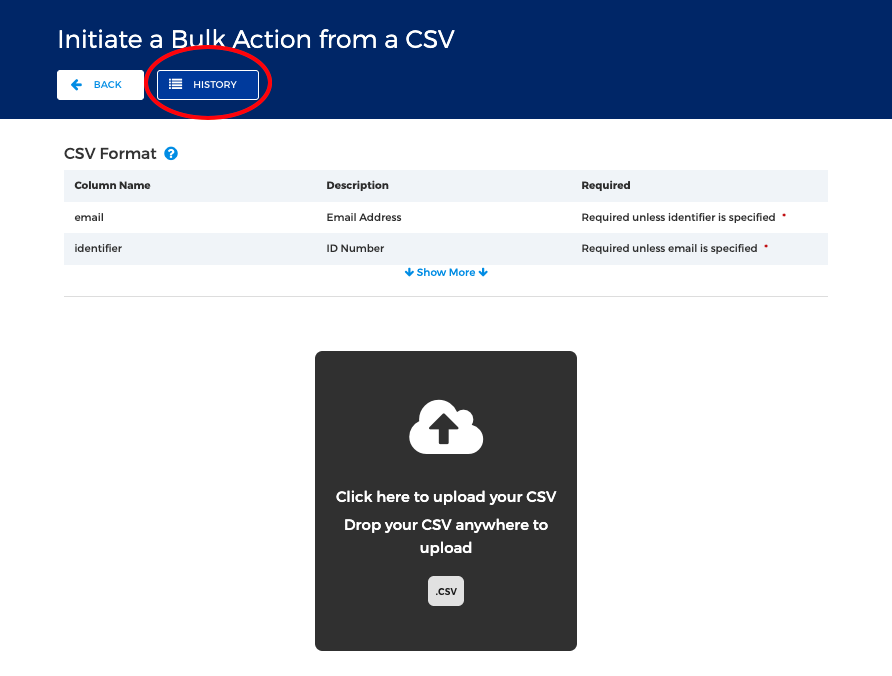
lines that processed but had errors: possibly due to the presence of duplicate users, bad email addresses, etc. These are marked with a small yellow triangle with an exclamation point inside. The type of error may change with the action performed (Create or Update, Create only, Update only). You will want to consult the Bulk Action History on the Bulk Action page. |
|
Unprocessed Count
|
lines that couldn't be processed at all, usually due to missing or invalid data. This will cause the system to time out and show the spinning icon beside the name of the CSV that was uploaded. |



For example, if a CSV has 100 records, and the results show:
- Success Count: 80
- Error Count: 10
- Unprocessed Count: 10
This means:
- 80 records/lines were successfully processed
- 10 records/lines had errors, but were processed and still made it into RemotePhoto. They should be checked for missing info.
- 10 records/lines couldn't be processed at all due to missing or invalid data. The system moved on without doing anything with the line.
A more detailed report is available for Directors (and Super Directors) in the Bulk Action -> History report.